
You open the app, and your hearing aids are nowhere to be found. Or they pair but drop the connection every few minutes. Or phone calls route to the phone speaker instead of your ears. Bluetooth connection problems are among the most frustrating hearing aid issues because everything should just work. The good news: nearly all connection failures come from a short list of causes, and this guide walks through them in the order that fixes most cases fastest. The steps cover both iPhone and Android, with platform differences called out where they matter.
First: Understand the Two Bluetooth Connections
Modern hearing aids actually maintain two separate Bluetooth links, and confusing them causes half of all “connection” complaints. The audio streaming connection carries phone calls, music, and media to your ears. The app control connection lets the companion app adjust volume and programs. These pair separately, and one can work while the other fails. If your app sees the aids but calls do not stream, or streaming works but the app cannot find them, you are dealing with two different connections, and the fixes below address each.
Step 1: The 60-Second Basic Reset
Before anything fancy, do the universal fix. Turn your phone’s Bluetooth off, wait 10 seconds, and turn it back on. Then restart your hearing aids: for disposable-battery models, open and close the battery doors; for rechargeable models, place them in the charger for 10 seconds and remove them. Open the companion app and wait up to 30 seconds for the aids to appear. This resolves a surprising number of cases because Bluetooth stacks on both phones and hearing aids occasionally get stuck in a bad state, and a clean restart clears it.
Step 2: Check Distance, Interference, and Battery
Bluetooth is short-range and easily bullied. Keep your phone within a few feet of your hearing aids during pairing; a phone in another room will not reliably pair. Move away from strong interference sources like microwaves, Wi-Fi routers, and crowded offices during setup. Low hearing aid batteries cause exactly the symptoms of connection failure: the aids have enough power to run but not enough to sustain a radio link. If your batteries are below 20 percent or more than a few days old, replace them (or fully charge rechargeable models) before concluding anything else. Also confirm your phone is not in airplane mode or Low Power Mode, both of which throttle Bluetooth.
Step 3: Forget and Re-Pair (the Real Fix for Most Cases)
When the basic reset fails, corrupted pairing data is the usual culprit. The fix is to delete the old pairing everywhere and start fresh. Do it in this exact order:
- Forget on the phone: go to Bluetooth settings, find your hearing aids in the device list, and tap Forget (iPhone) or Unpair (Android). Do this for every entry related to the aids, including any LE Audio or duplicate entries.
- Forget in the app: open the hearing aid companion app and remove or forget the devices there too, if the app offers that option.
- Restart the phone: power it fully off and back on. This clears the Bluetooth cache, which is where corrupted pairing data hides.
- Restart the hearing aids: battery door cycle or charger cycle, as in step one.
- Re-pair through the app first: most manufacturers want you to pair via their companion app, not through the phone’s Bluetooth settings directly. Open the app and follow its pairing flow.
- Then enable audio streaming: on iPhone, go to Settings, Accessibility, Hearing Devices, and pair there for direct audio streaming. On Android, enable streaming in the companion app or Bluetooth settings as your manufacturer directs.
This sequence resolves the majority of stubborn pairing failures. The critical detail is step three: without the phone restart, the corrupted cache often survives and the problem returns within days.
Step 4: iPhone-Specific Checks
iPhones handle hearing aids through a dedicated accessibility pipeline, and it has its own quirks. First, verify your iOS version: manufacturers drop support for very old iOS releases, and a hearing aid app may silently fail on an outdated phone. Update iOS if you are behind. Second, check Settings, Accessibility, Hearing Devices: your aids should appear here as paired for audio streaming, separate from the regular Bluetooth list. If they appear in Bluetooth settings but not here, streaming calls will not work; pair them in the Hearing Devices screen directly. Third, if calls route to the phone speaker, go to Settings, Accessibility, Touch, Call Audio Routing, and set it to your hearing aids. Fourth, disable Bluetooth on nearby Apple devices (iPad, Mac) temporarily during pairing; Apple devices aggressively compete for the connection. For background on which hearing aid styles offer the most reliable wireless features, see our hearing aid types guide.
Step 5: Android-Specific Checks
Android’s challenge is fragmentation: Bluetooth behavior varies across manufacturers and versions. First, confirm your Android version meets the hearing aid maker’s minimum requirement; ASHA (Audio Streaming for Hearing Aids) and newer LE Audio support depend on recent Android releases. Second, check that the companion app has all permissions it requests, especially location permission, which Android requires for Bluetooth scanning on many versions. Denying location access silently breaks pairing on some phones. Third, disable battery optimization for the hearing aid app: aggressive power savers kill the background Bluetooth connection, causing the random dropouts many Android users report. Find the app in Settings, Battery, and set it to unrestricted. Fourth, if your phone supports both classic Bluetooth pairing and LE Audio, try each mode; some hearing aids are stable on one but flaky on the other.
Step 6: Fixing Frequent Dropouts
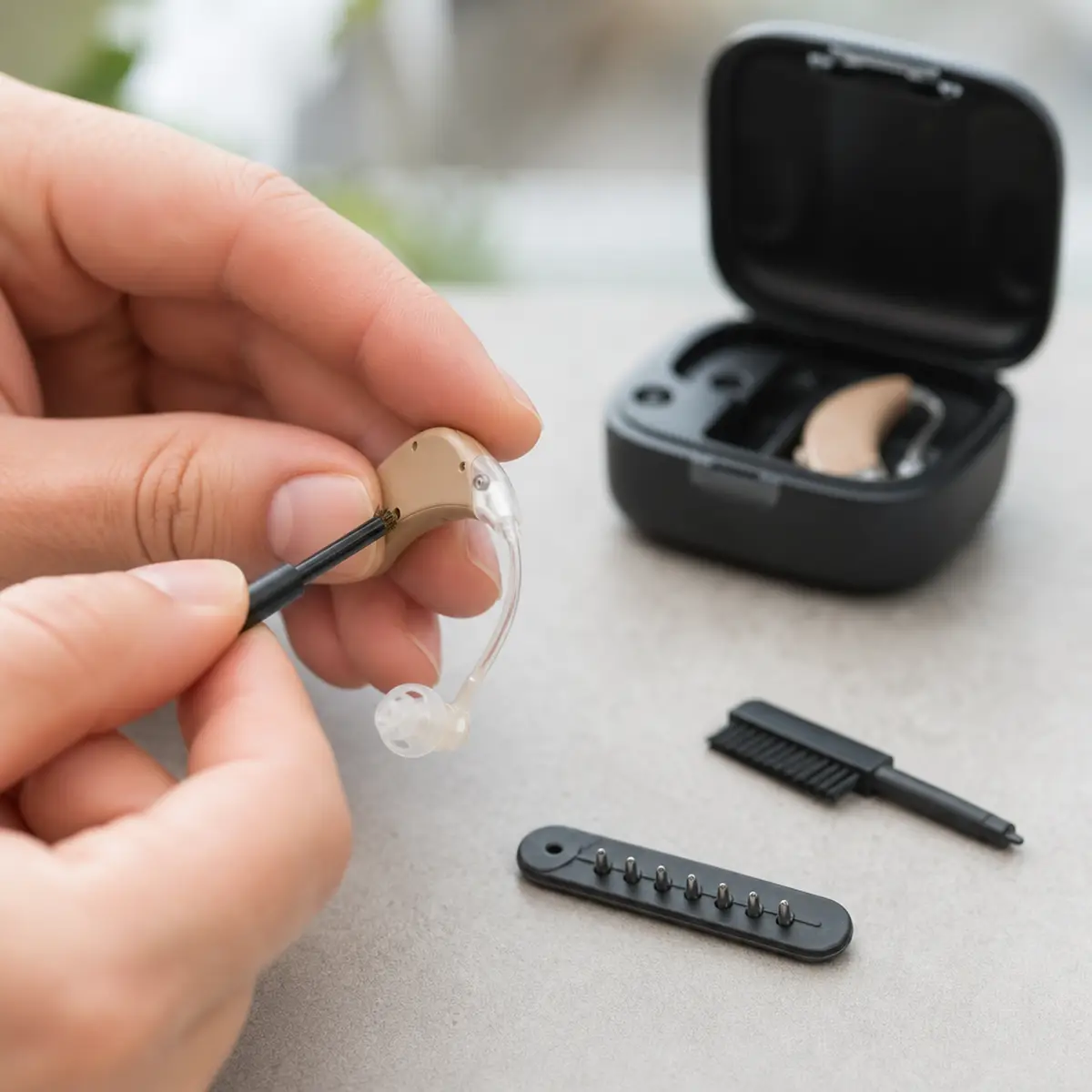
If pairing succeeds but the connection drops repeatedly, the cause is usually environmental or power-related rather than a pairing fault. Keep the phone on the same side of your body as much as possible; your body absorbs Bluetooth signals, and a phone in the opposite back pocket is a classic dropout setup. Replace or recharge batteries, since marginal power causes exactly this symptom, and wipe charging contacts regularly as shown in our cleaning guide. Turn off Wi-Fi temporarily to test whether Wi-Fi/Bluetooth coexistence is the issue; if dropouts stop, your phone’s radio management is the problem and a phone update may help. And check for competing connections: hearing aids paired to two devices (phone plus tablet, for example) can bounce between them. Disconnect the device you are not using.
When It Is a Hardware or Compatibility Problem
A small minority of cases are not fixable with settings. If the aids never appear in any Bluetooth scan on any phone, the Bluetooth radio in the aid may have failed, which needs manufacturer service. If your phone is very old, it may simply lack the Bluetooth Low Energy profiles your aids require; check the manufacturer’s compatibility list before assuming the aids are broken. When shopping for replacements, add Bluetooth compatibility to your pre-purchase checklist. And if dropouts began immediately after a phone OS update, check the hearing aid maker’s support site; manufacturers sometimes need weeks to release a compatibility fix, and their support pages usually acknowledge it.
Frequently Asked Questions
Why do my hearing aids pair with the app but not stream calls?
Those are separate Bluetooth connections. App control pairing does not automatically enable audio streaming. On iPhone, pair separately under Settings, Accessibility, Hearing Devices. On Android, enable streaming in the companion app or Bluetooth settings.
Do I need the manufacturer’s app, or can I pair directly?
Use the manufacturer’s app for initial pairing. Most makers design their flow around the app, and pairing directly through phone Bluetooth settings first often creates conflicts that break the app connection later.
Why do my hearing aids disconnect when I put my phone in my pocket?
Your body blocks Bluetooth signals. A phone in a back pocket on the opposite side from the aids is the worst case. Use a front pocket on the same side, or a belt clip, to keep a clear path.
Can I connect my hearing aids to two phones at once?
Most hearing aids support multipoint connections to two devices, but switching can be unreliable. If you experience dropouts, disconnect the device you are not actively using.
Will a phone update break my hearing aid connection?
Occasionally, yes. OS updates sometimes change Bluetooth behavior. If problems start right after an update, re-pair using the forget-and-repair sequence, and check the manufacturer’s site for a compatibility notice.
The Bottom Line
Bluetooth connection problems feel mysterious but follow predictable patterns: stale pairing data, low batteries, interference, and platform quirks cause nearly all of them. Work the steps in order, always include the phone restart in the re-pairing sequence, and handle iPhone and Android differences deliberately. If you have done all of this and the aids still will not appear on any device, you have earned a support call; that pattern points to hardware. For other hearing aid misbehavior, our dead hearing aid checklist and muffled sound guide have you covered.